SmartBook and Connect orientation answers, with the source for each
The orientation questions test how SmartBook and Connect work, so every answer is in McGraw Hill's own guides. The SmartBook items most students get:
- True You can start with the reading or go straight to the questions.
- False Rating your confidence (High, Medium, Low) is optional.
- True After several wrong answers, you may have to review a resource before you go on.
- False One right answer per concept is enough to move the progress bar.
- False You can open Recharge at any point during the assignment.
Our pickThe orientation is the easy one. For every SmartBook after it, Canvas Quiz Solver shows the answer inside the page, right above the High, Medium and Low buttons. You pick it yourself.
What the orientation assignment is
The orientation is a short set of videos with questions that McGraw Hill makes for new students. Your instructor adds it like any other Connect assignment. McGraw Hill's SmartBook user guide gives the steps: Add Assignment, then Question Bank, then the "Connect Orientation Videos" source. The instructor picks videos such as "SmartBook Student Orientation", picks "all or some of the Questions", and can set a start and due date.
That explains two things students notice:
- Sets differ. Your instructor chooses which questions you get, so your set may be shorter or in a different order than a friend's.
- Points and due date are your instructor's. McGraw Hill does not document a default point value for the orientation.
The wording below is ours, not McGraw Hill's. Your version may phrase a question differently or flip it, so that the true answer becomes false. Read the explanation, not just the label, and you will get it right either way.
SmartBook orientation questions and answers
These are the true or false items that public answer sets for the SmartBook 2.0 student orientation repeat most often. Each answer cites the McGraw Hill guide that proves it.
Can you begin a SmartBook assignment with either the reading or the questions?
TrueAfter you click Begin, a welcome page offers Start Reading or Start Questions. McGraw Hill recommends reading first "for the most effective learning experience", but you can jump straight to the questions.
Source: SmartBook Overview - Student; SmartBook 2.0 Assignment Overview, step 3.
Are the key topics highlighted for you, and can you move through the reading by page or by concept?
TrueThe highlighted sections are the concepts your instructor picked as learning objectives. McGraw Hill says you can move through the text by page or by the highlighted concepts. The arrows take you between sections and between concepts.
Source: SmartBook Overview - Student; 2023 Student Guide, "Navigating your SmartBook".
Is it optional to rate how confident you are (High, Medium, Low) before you submit?
FalseMcGraw Hill says that to complete a question, "you will check your answer AND rate your confidence in your answer". The rating does not move your progress bar, but you cannot skip it. In SmartBook, the confidence click is what submits your answer.
Source: SmartBook Overview - Student, "Question Mode and Format" and "The Adaptive Experience".
After you miss some questions, do you have to look at a resource such as "Learn About This" before you can go on?
TrueMcGraw Hill's instructor overview says that when a student is clearly struggling with a concept, SmartBook "will force a pause in the questions" and sends the student to "Learn About This". The student overview says the resource is often a section of the text.
Source: SmartBook 2.0 Instructor Overview; SmartBook Overview - Student, "Feedback".
Is one right answer per concept enough to move the progress bar?
FalseMcGraw Hill's student guide says you need to "successfully answer at least two questions related to a concept before that concept is marked complete". McGraw Hill's training guide says the same in other words: you must answer several questions on one concept correctly to move the bar. Some public answer sets mark this one True. They are wrong.
Source: 2023 Student Guide, "Progress Bar"; SmartBook 2.0 Assignment Overview, step 8.
Can you open Recharge at any point while you work on a SmartBook assignment?
FalseRecharge opens at two moments only: right after you complete the assignment, or after the due date (including any extension). McGraw Hill's student guide says you reach it by clicking a completed assignment marked "Recharge". Work in Recharge does not change your score.
Why some sets say True: McGraw Hill's older instructor overview has the line "At any time, students can review and recharge their learning." The current user guide and the student grading guide spell out when Recharge actually opens, and they are what this answer follows.
Source: SmartBook User Guide, section 8; SmartBook: Grading and Recharge for Students; SmartBook 2.0 Instructor Overview.
When you finish, do you see your progress, accuracy and the concepts you found hardest?
TrueMcGraw Hill's student guide says Connect gives instant feedback on SmartBook assignments with "a rundown of concepts you found most challenging". Your report shows how long you spent, your confidence profile and those challenging concepts. The instructor overview adds that real-time progress reports follow each assignment.
Source: 2023 Student Guide, "Metacognitive awareness" and "Reports"; SmartBook 2.0 Instructor Overview, "Progress Reports".
Connect orientation questions and answers
The Connect part of the orientation covers the assignment list and how to save and submit. These items come up in public answer sets for the Connect student orientation.
To see the details of an assignment, do you click the arrow at the right end of its row?
TrueMcGraw Hill's student guide says to view the assignment details, "click on the arrow at the end of the assignment line". The details show the start and end date, the point value and the number of attempts allowed.
Source: Completing Assignments - Student; 2023 Student Guide, "Assignments".
If an assignment has no time limit and you are only partly done, can you save your work and come back later?
TrueMcGraw Hill says that if an assignment is not timed, "you may click Save and Exit at any time to save your work and return to it later". Saving does not count as an attempt until you click Submit. A timed assignment is different: the clock keeps running even after Save and Exit.
Source: Completing Assignments - Student; 2023 Student Guide, "Save & Exit vs. Submit Assignment".
If you are stuck on a question, can you sometimes get help right on the page?
TrueIt depends on your instructor. McGraw Hill says that if your instructor allows resources, "they will be located on the left side of the page and under the question". The instructor decides which resources are turned on, if any.
Source: Completing Assignments - Student.
Two more Connect facts from the same guides
- Read the assignment details before you click Begin. McGraw Hill warns that some assignments "only allow a limited number of attempts or have a time limit".
- Do not use the browser's back and forward buttons. The 2023 guide says you "could lose some of your work". Use Prev and Next or the question map instead.
What the orientation tells you about grading
Put the orientation answers together and you get the grading rules for every SmartBook in your course:
- Your score is completion. McGraw Hill: "Your assignment score is the percentage complete on due date as indicated by the progress bar."
- Completion means concepts. Each one needs at least two right answers.
- Confidence does not count. It is required, but it does not move the progress bar.
- The due date ends scoring. After it, the assignment turns into Recharge and your score stays where it was.
The full rules, with late work and what your instructor sees, are in how SmartBook is graded. Recharge has its own guide: SmartBook Recharge, explained.
Answers on the rest of your SmartBook
The orientation is the only SmartBook assignment with a public answer key. Every chapter after it has questions about your course, and they change with each wrong answer. Canvas Quiz Solver shows the answer to each SmartBook question inside the page, right above the High, Medium and Low buttons.
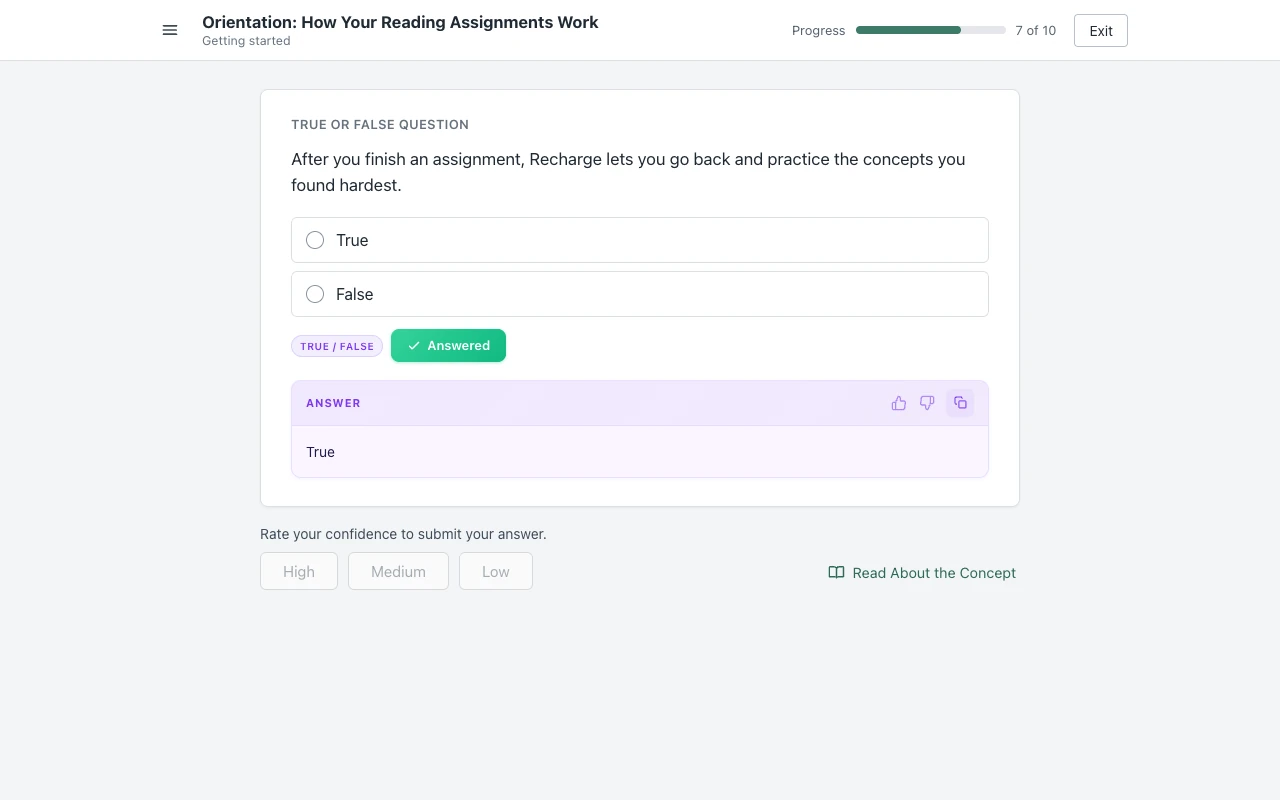
You read the answer, pick it, rate your confidence and go to the next question. It reads multiple choice, true/false, multiple select, fill in the blank, matching and ordering. It never clicks or submits for you, and it opens no second tab. Answers come from AI and can be wrong, so read each one before you pick it.

You get free answers to try it on a real assignment. For speed tips, see how to finish SmartBook fast.
Sources we checked
- SmartBook Overview - Student (McGraw Hill, PDF, updated April 2026), checked 2026-10-21
- SmartBook 2.0 Assignment Overview, Liberty University Digital Training Series (McGraw Hill, PDF), checked 2026-10-21
- The Student Guide to Using Connect and SmartBook (McGraw Hill, PDF, July 2023), checked 2026-10-21
- SmartBook 2.0 Instructor Overview (McGraw Hill, PDF), checked 2026-10-21
- SmartBook User Guide (McGraw Hill, PDF, September 2026), checked 2026-10-21
- SmartBook User Guide, SmartBook 2.0 edition (McGraw Hill, PDF), checked 2026-10-21
- SmartBook: Grading and Recharge for Students (McGraw Hill, PDF), checked 2026-10-21
- Completing Assignments - Student (McGraw Hill, PDF), checked 2026-10-21
Common questions
What are the SmartBook orientation answers?
You can start with the reading or the questions: true. Rating your confidence is optional: false. You may have to review a resource after several misses: true. One right answer per concept moves the progress bar: false. Recharge opens at any time: false.
Is it optional to indicate how confident you are in SmartBook?
No. McGraw Hill says that to complete a question you check your answer and rate your confidence. The rating does not move your progress bar, but the High, Medium or Low click is what submits the answer.
Can SmartBook Recharge be accessed at any time?
No. Recharge opens after you complete the assignment or after the due date, including any extension. An older McGraw Hill instructor overview says students can recharge "at any time", which is why some answer sets say true.
How many questions per concept do you need to get right in SmartBook?
At least two. McGraw Hill's student guide says you need to answer at least two questions on a concept correctly before it is marked complete in the progress bar.
Is the SmartBook orientation graded?
It is a Connect assignment your instructor adds, so its points and due date are your instructor's choice. McGraw Hill does not document a default point value for it. Check the assignment details in Connect.
Does Canvas Quiz Solver work on SmartBook?
Yes, in beta. It shows the answer to each SmartBook question inside the page, above the High, Medium and Low buttons. It reads multiple choice, true/false, multiple select, fill in the blank, matching and ordering.
Orientation done. Now the real SmartBooks.
The answer shows above High, Medium and Low on every question. You pick it, you rate it, you move on. Start free.