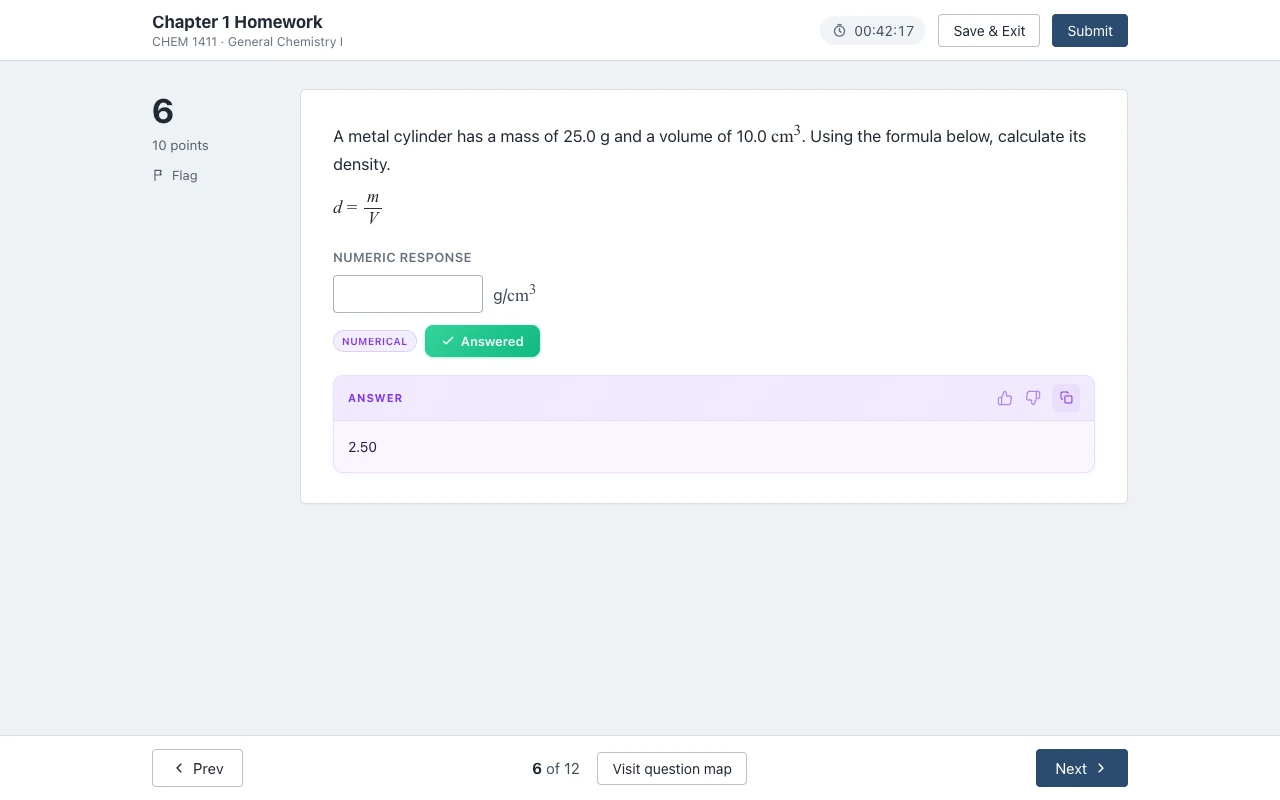
Numeric and math
Fractions, exponents and formulas in the question are read as math, and the card gives the number to type; the unit is already printed next to the box.
One click on the extension icon and each question shows its answer in the page. Works on Connect homework and quizzes and on SmartBook (beta).

Canvas Quiz Solver reads the McGraw Hill Connect question on your screen and shows an AI answer right under it.
No screenshots, no copy-paste and no switching to a chatbot tab. You read the question, you see the suggested answer below it, and you decide.
When you move to the next question, it gets its own answer. Multiple choice names the right option, fill in the blank gives the words, and numeric questions give the number to type into the box.
Answers come from AI, so read them like a second opinion from a smart classmate. They can be wrong, and you are the one who submits.
It takes about a minute: add the extension, open an assignment, then turn it on for McGraw Hill once.
It is the same free extension Canvas students use. Pin it so the icon stays in your toolbar.
Go to the homework, quiz or SmartBook assignment the way you always do.
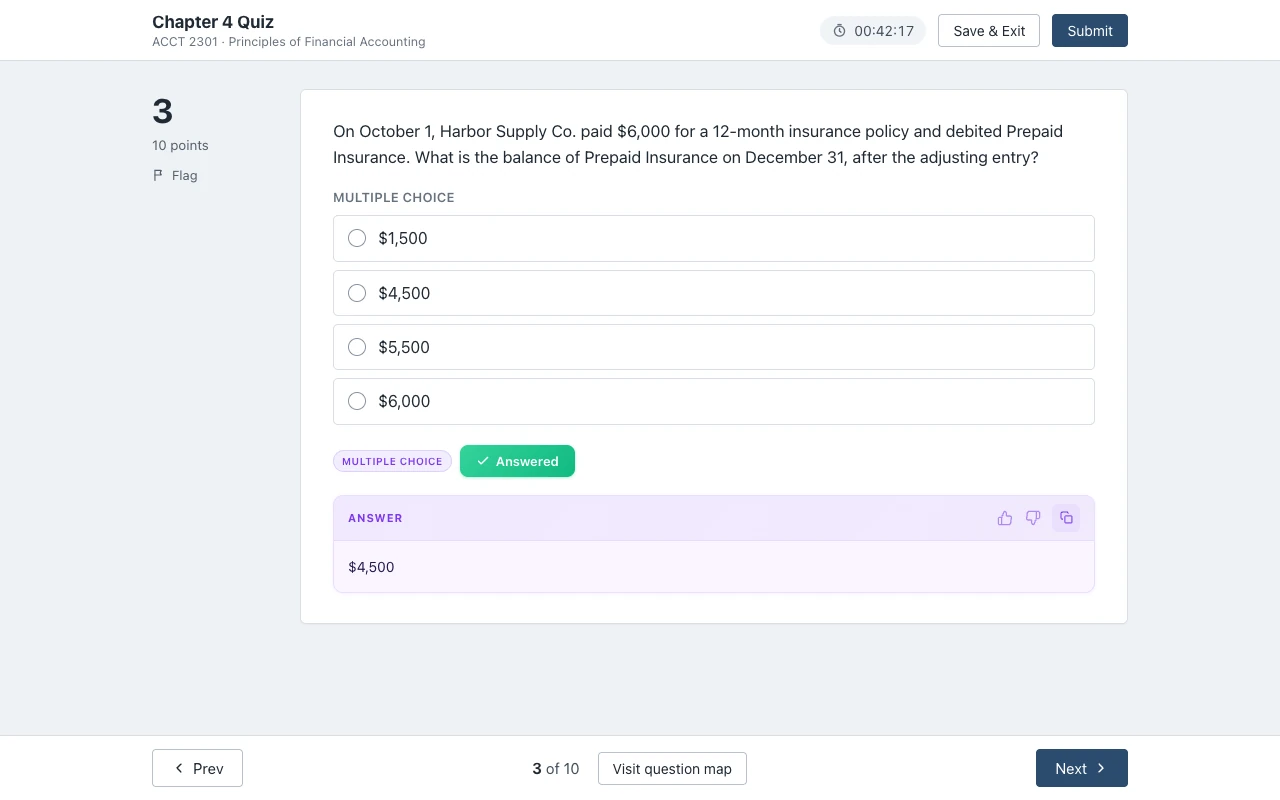
The popup says "Answers are on for this assignment." Tap "Keep it on for this site" and allow the one Chrome prompt. After that it is on for every assignment there.
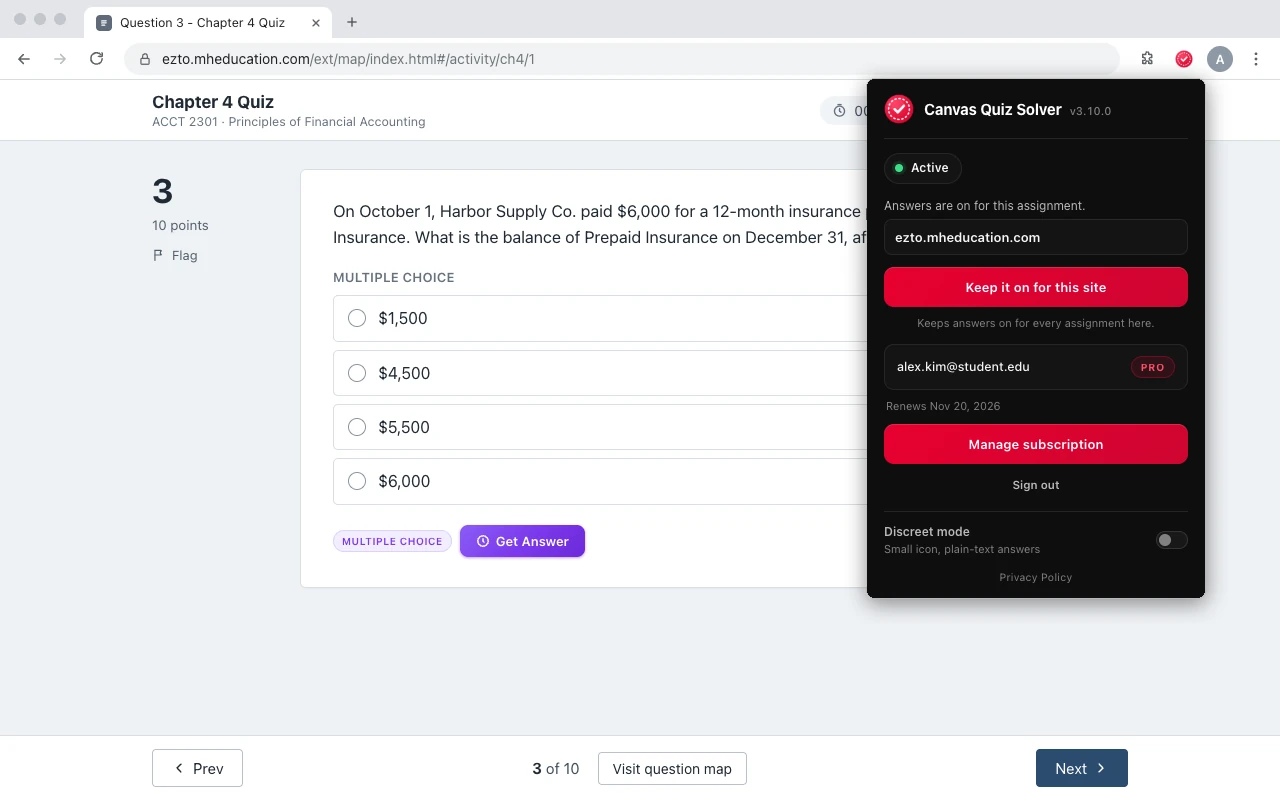
It reads the question types you meet most in Connect homework and quizzes, from multiple choice to numeric questions with math. By subject: what works where, including anatomy and physiology and accounting.
Fractions, exponents and formulas in the question are read as math, and the card gives the number to type; the unit is already printed next to the box.
The card lists every pair, one per line. You drag or pick each match yourself.
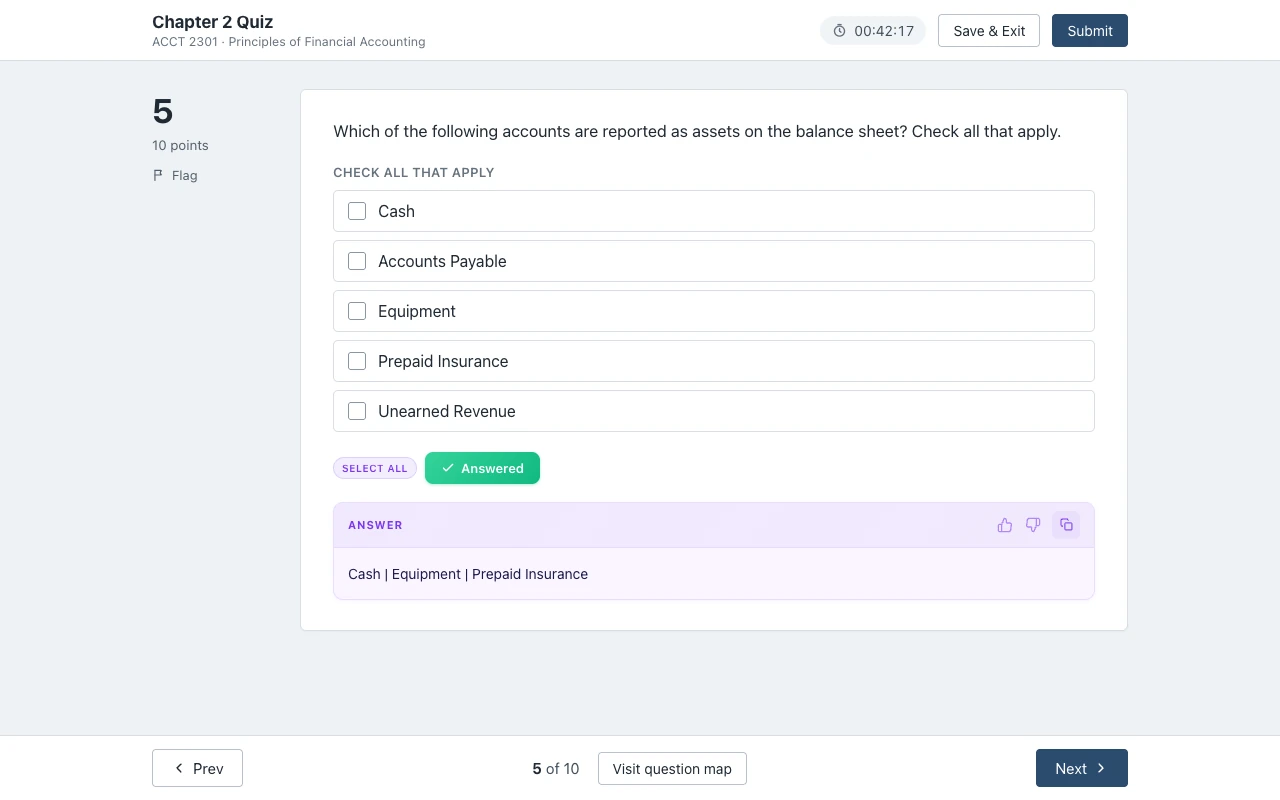
The card names every option to check, so you do not stop at the first right one.
Yes, it works on SmartBook: the answer shows above the High, Medium and Low confidence buttons.
SmartBook asks a lot of short questions, and a wrong answer can mean more questions before you finish. Seeing a suggested answer before you rate your confidence keeps the reading assignment moving.
It reads multiple choice, true/false, multi-select, fill in the blank, matching and ordering questions. You still pick the answer and press the confidence button yourself.
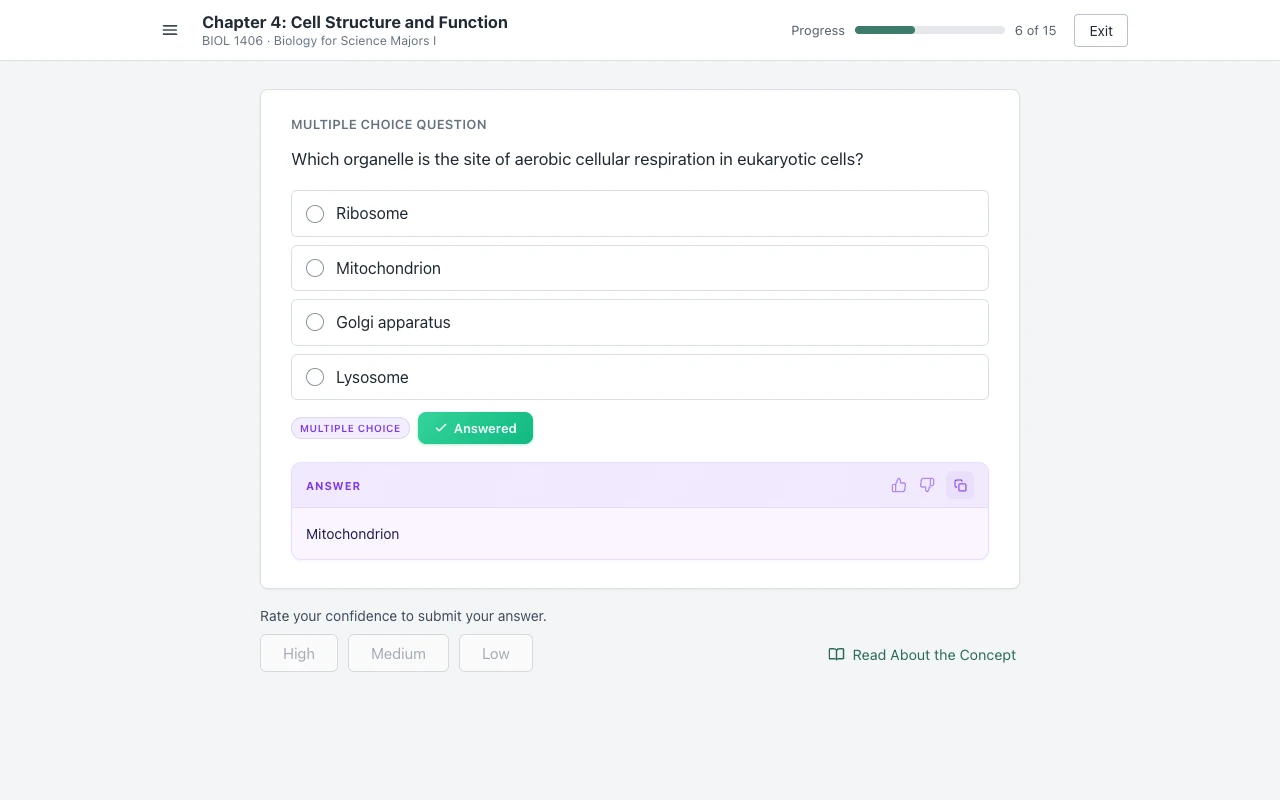
It shows you the answer and stops there: nothing is filled in, clicked or submitted for you. Thinking about a bot? See auto-mcgraw compared.
The answer appears under the question. You click the option or type the answer, the same way you would without it.
An auto-answer bot clicks through a whole assignment by itself. If it gets one wrong, you find out at the grade. Here every submit is yours.
Because you read each answer before you use it, you catch the odd one that looks off, and you learn the material while you go.
That also makes it the safer choice: what you submit is always what you picked.
It stays off on proctored exams, and a few Connect question types are not supported yet.
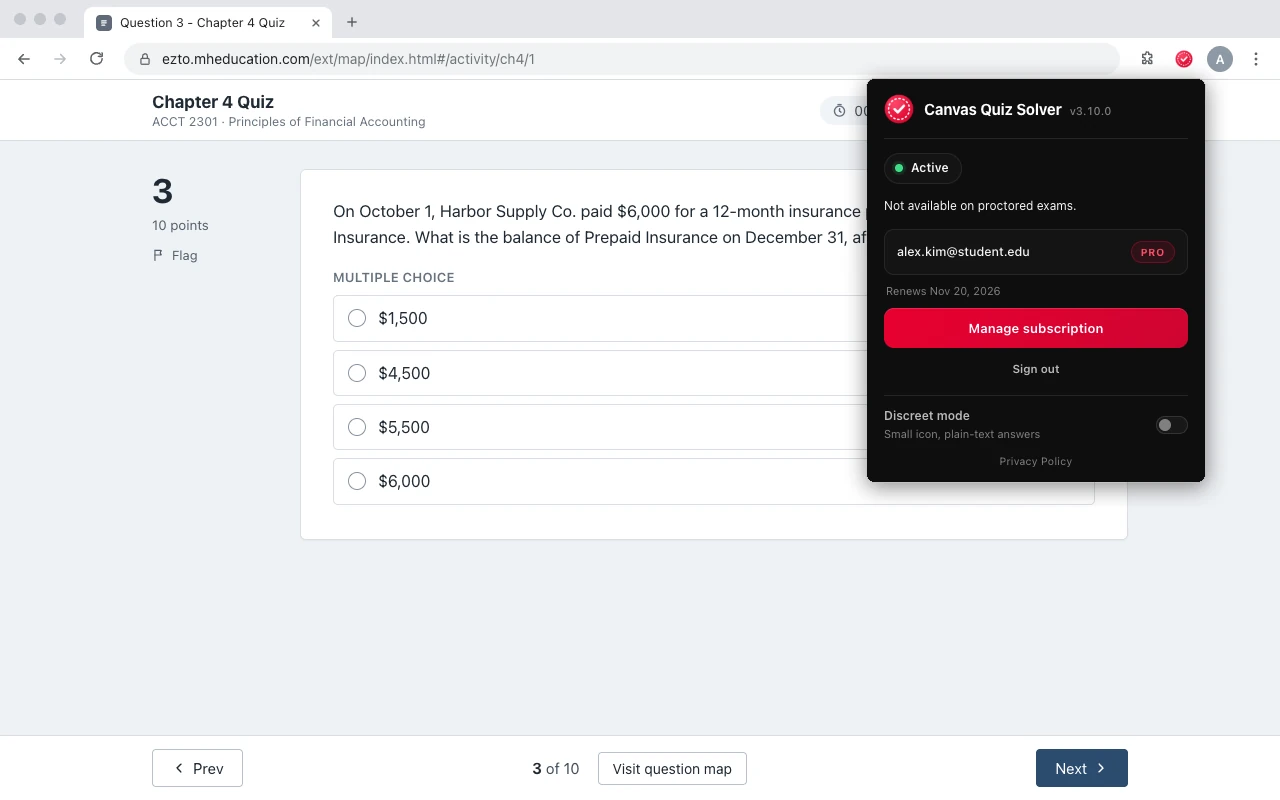
On an exam proctored with Proctorio or a similar tool, nothing shows on the page. The popup says Not available on proctored exams. More in our Proctorio guide and our guide to Connect exams.
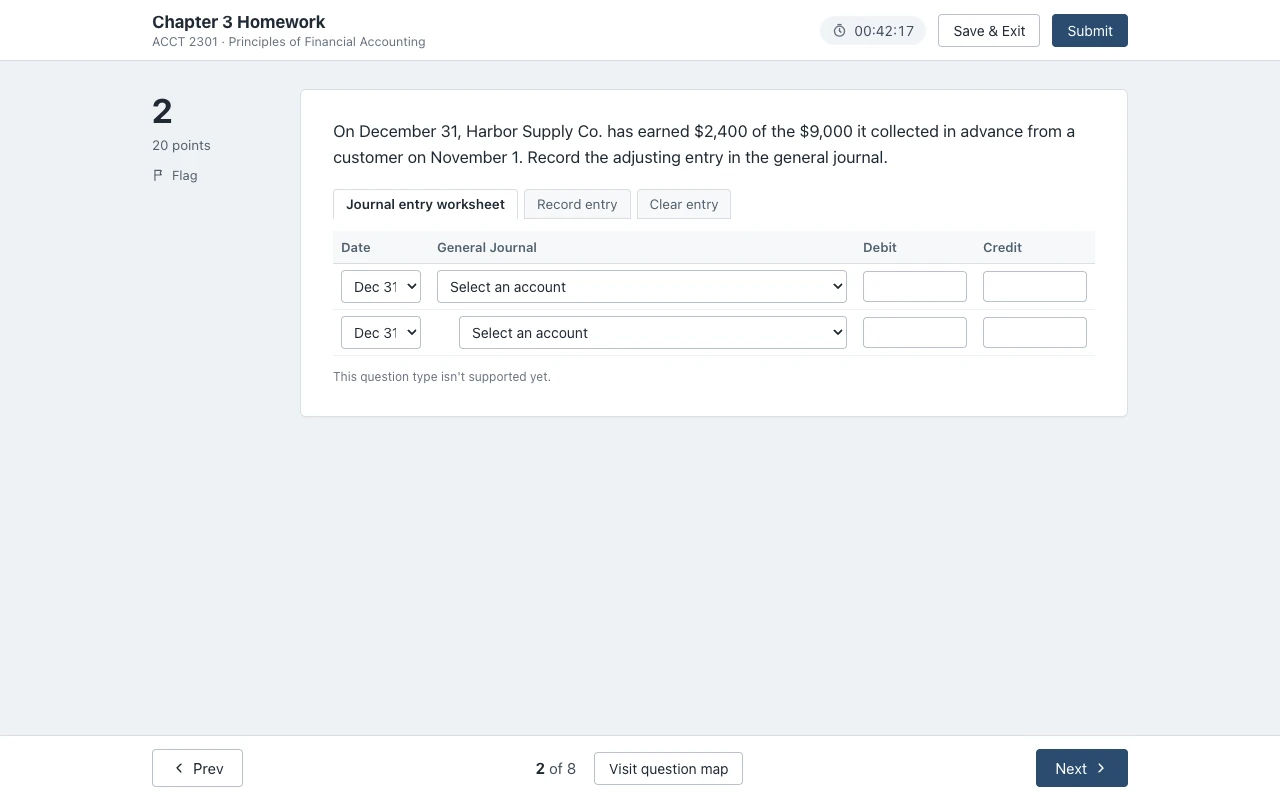
Accounting worksheets with many parts, the accounting tool, external tools, surveys, document uploads and the older Connect player are not supported yet. On those it shows one quiet line: This question type isn't supported yet. Taking accounting? See what works in accounting.
One plan covers both: Unlimited is $14.99 a month or $48.99 every 4 months, on Canvas, Connect and SmartBook.
Lock this price for life.
$12.25/month, billed every 4 months.
You save $10 a semester.
Renews every 4 months. Cancel anytime.
Free answers can run out mid-assignment Cancel anytime
Unlimited answers Connect + SmartBook (beta) Canvas quizzes Any computer
7-day money-back guaranteeNot happy? Email support@canvasquiz.com within 7 days of your first payment for a full refund.
After you pay
Already subscribed? Sign in. Your plan already covers McGraw Hill.
Because Connect changes the numbers for each student, and a second tab means copying every question by hand.
Many Connect questions are algorithmic: the numbers change for each student. A flashcard set or a posted solution from last term often shows the right method with the wrong numbers.
You copy the question, switch tabs, paste, wait, and switch back. Connect quiz pages block the right-click menu, so even copying is slow. Math and matching questions get lost in the paste.
Canvas Quiz Solver reads your version of the question where it already is, with your numbers, and shows the answer under it.
Comparing tools? See SolveMyBook vs Canvas Quiz Solver.
Short, sourced answers to what students ask most about Connect and SmartBook.
Add Canvas Quiz Solver to Chrome, open your Connect assignment, click the extension icon and tap "Keep it on for this site". Each question then shows an AI answer under it, in the same tab.
Students do not get an answer key for Connect assignments. Your instructor decides if and when Connect shows the correct answers after you submit. Many Connect questions also change their numbers for each student, so a key someone shared often does not match your version.
No. The same extension works on Canvas quizzes and, in beta, on McGraw Hill Connect and SmartBook. One account and one plan cover both.
Yes, in beta. It reads multiple choice, true/false, multi-select, fill in the blank, matching and ordering questions, and shows the answer above the High, Medium and Low confidence buttons.
No. It shows the answer under the question. You pick the option, type the answer and submit it yourself. It never fills in, clicks or submits anything.
No. On a proctored exam (Proctorio and similar) nothing shows on the page, and the popup says "Not available on proctored exams."
Not yet. Connect worksheets with many parts, the accounting tool, external tools, surveys, document uploads and the older Connect player are not supported. On those it says "This question type isn't supported yet."
You can add it free and try it with free answers. Free answers can run out mid-assignment. Unlimited is $14.99 a month or $48.99 every 4 months, with a 7-day money-back guarantee.
It depends on your instructor's attempt settings for that assignment. Check the assignment's policies or ask your instructor.
The best one reads the question where it already is. Canvas Quiz Solver shows the answer inside the Connect or SmartBook page, so there is no second tab, no screenshot and no copy-paste. You still pick and submit every answer.
The answer under every question, in the same tab. You stay in control.